Moderator Role Setup
Let's see how we can create a Moderator role on our network which only has access to a select few Staff Network Panel tabs.
Step 1: Create the Moderator Role
First, navigate to:
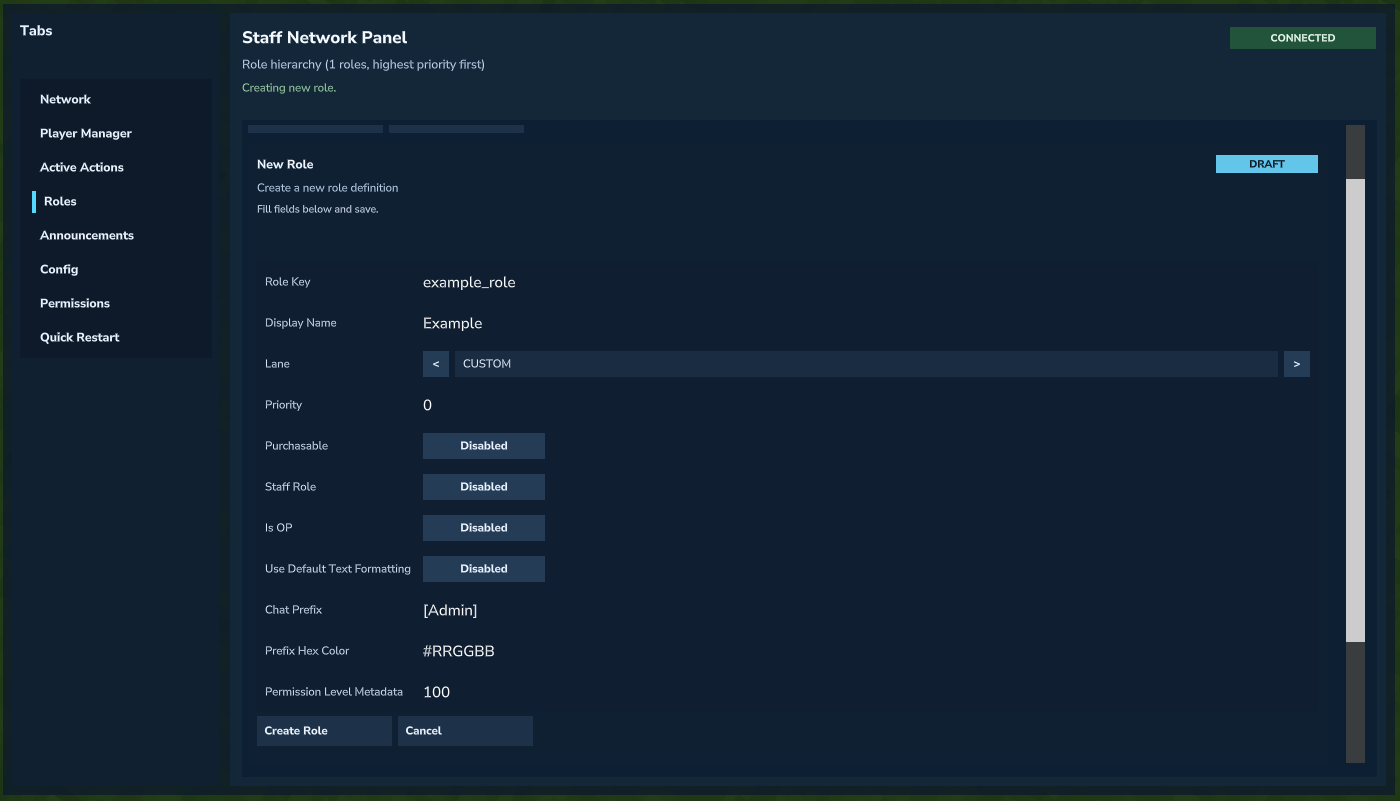 Creating a new role from the Roles tab.
Set the fields and ensure permission level is below the
Admin
permission level (default 1000). Hit Create Role.
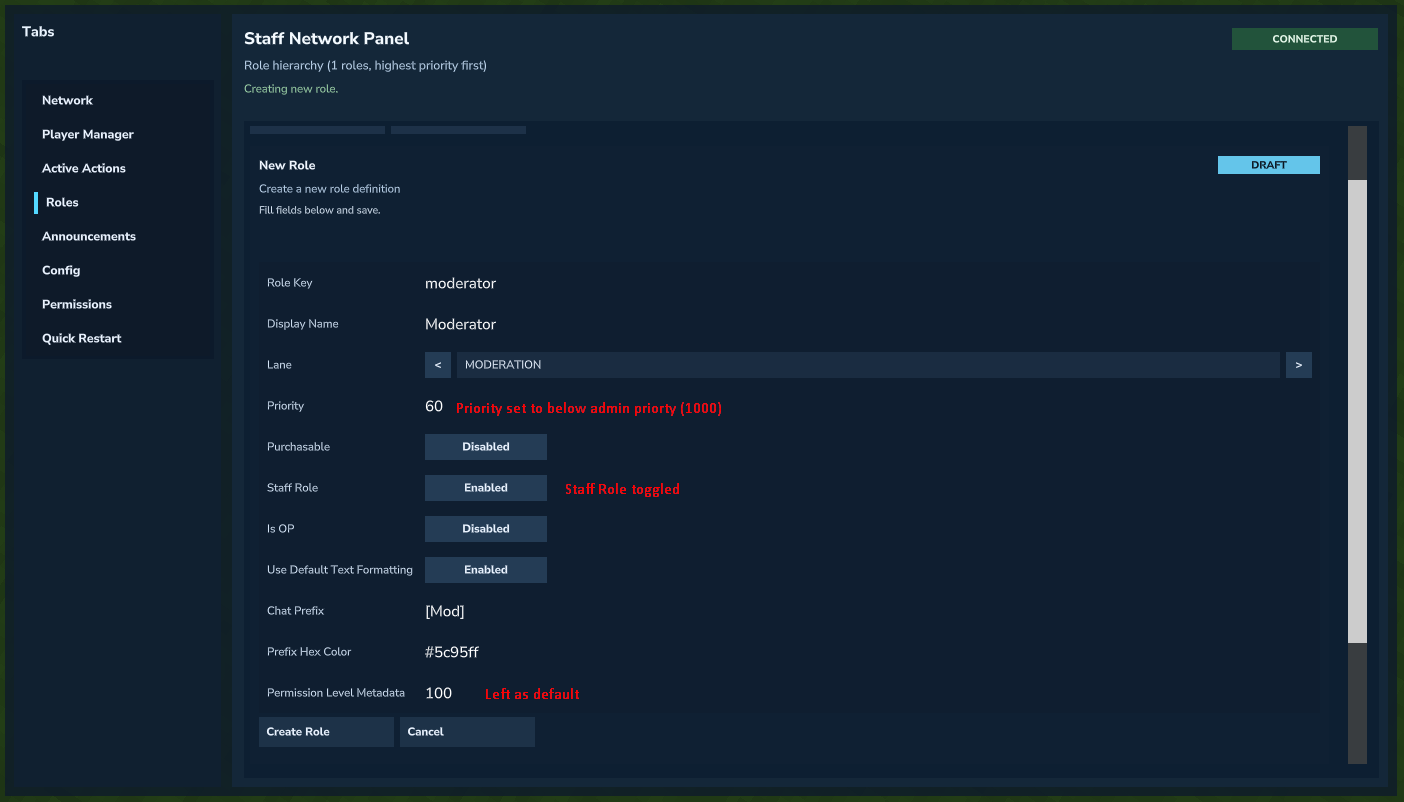 Moderator role configured and ready to create.
Step 2: Configure Staff Panel Tab Access
Now, let's set permission levels for the network so moderators can only access the Staff Network Panel tabs we want them to.
Navigate to:
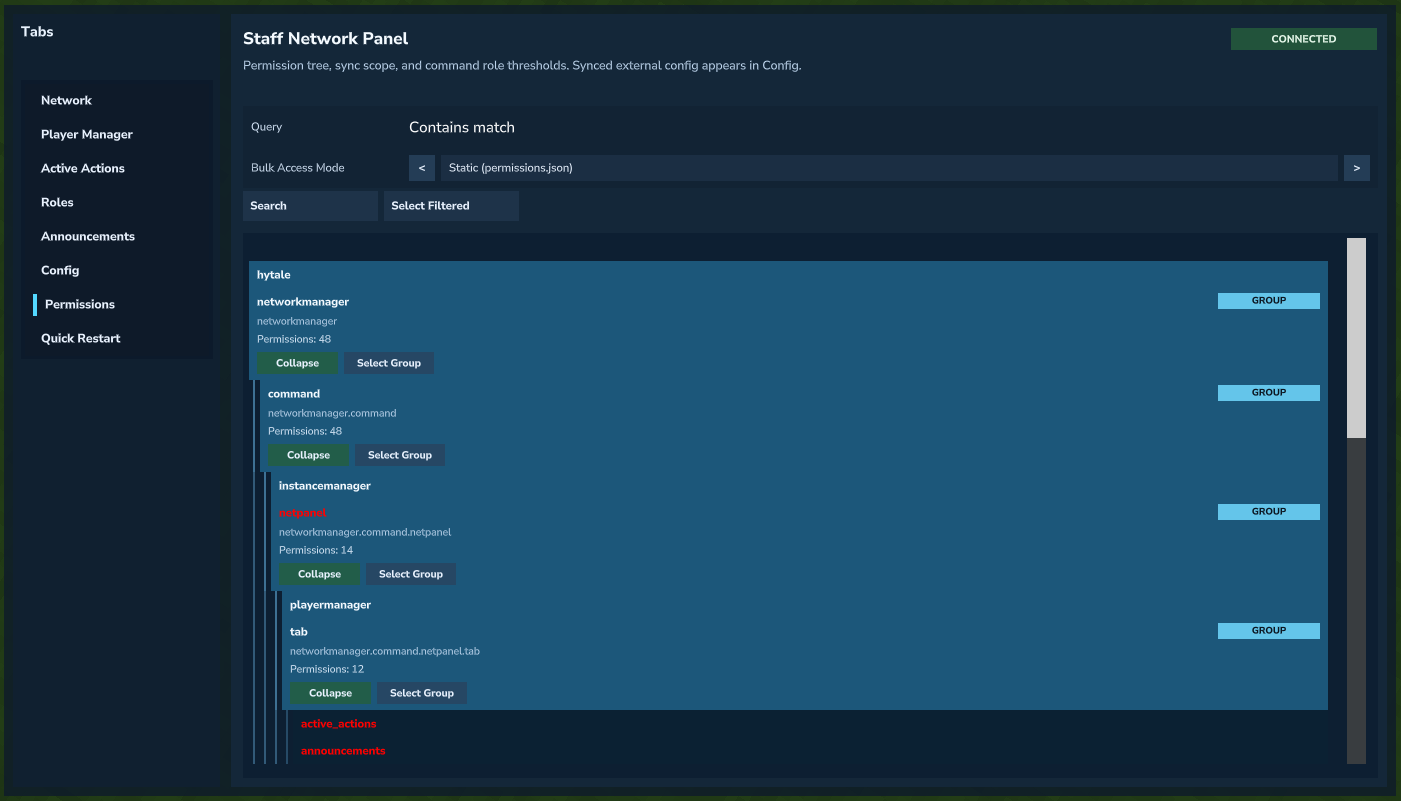 Navigating to tab-specific netpanel command permissions.
We'll expose the Player Manager, Active Actions, and Announcements tabs to moderators.
Do this by swapping Access Mode under each of these three to the moderator role you just created. This allows any role with priority level equal to or higher than the moderator role to access that command.
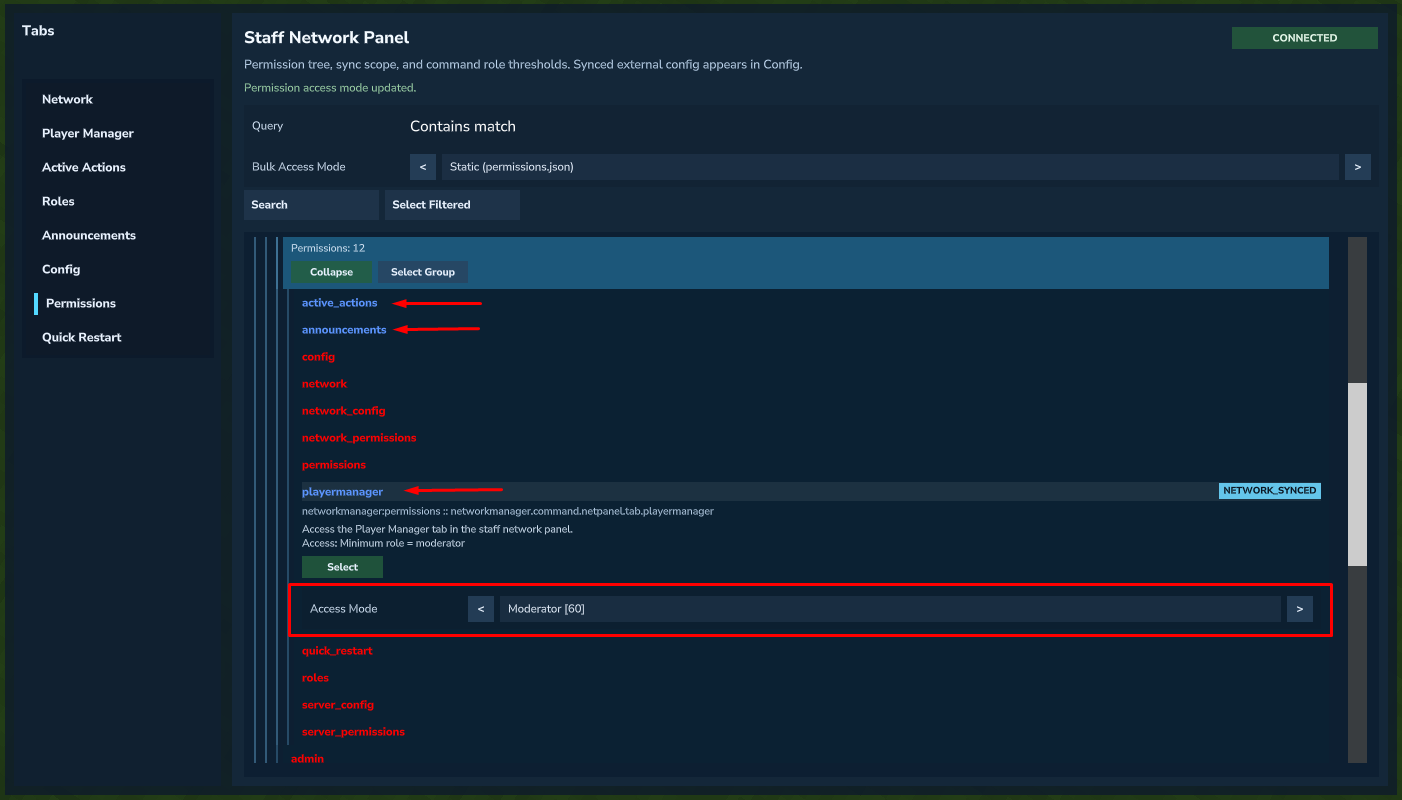 Setting tab access mode to the moderator role threshold.
Now moderators will have access to only these three tabs.
Ensure that in permissions you've set the minimum level required for the /netpanel command to moderator as well.
Note: there is an inbuilt guard against granting players roles with equal or higher priority than the user using the role grant tool.
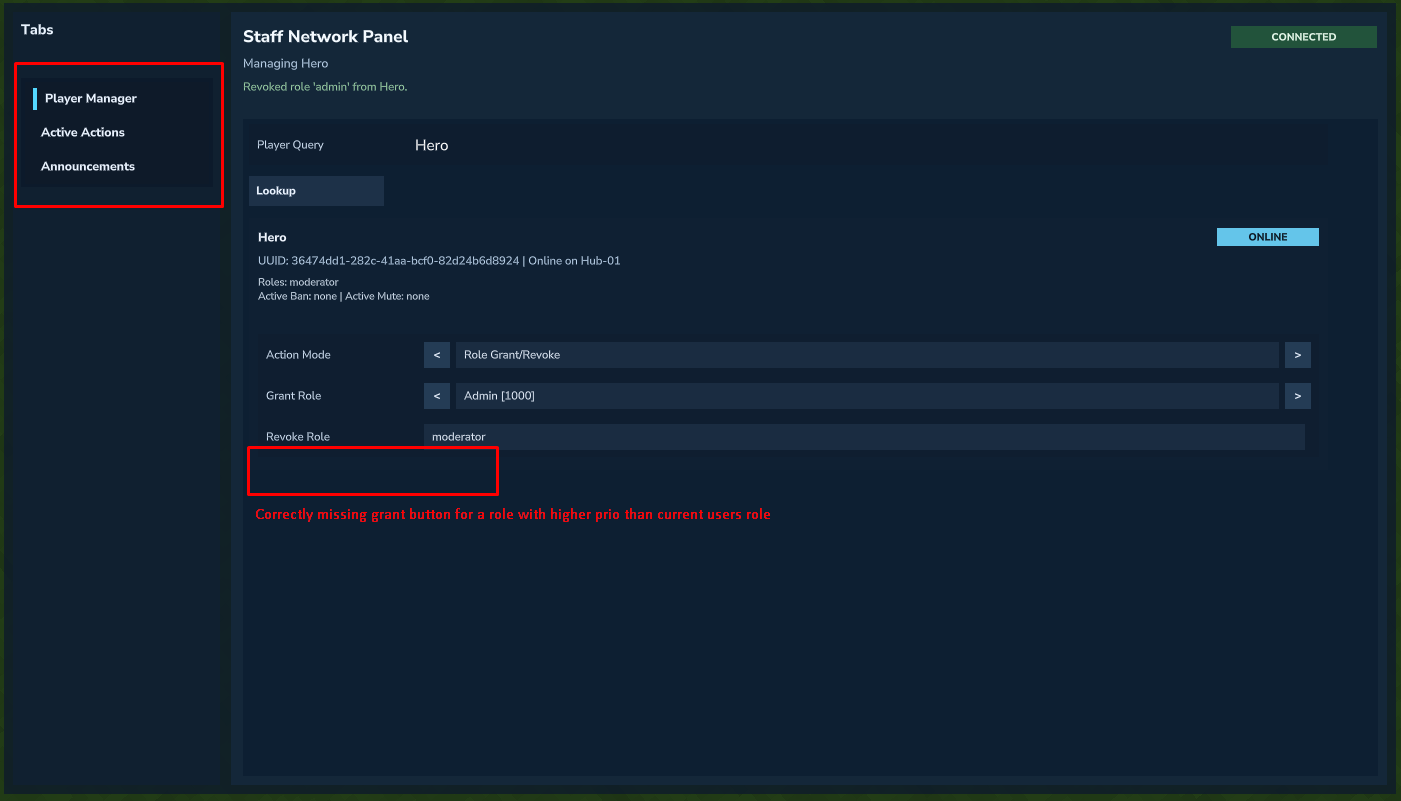 Moderator view of the Staff Network Panel.
We've now successfully configured a moderator role with the correct permission levels.