Permissions
The Network Plugin provides a way to manage plugin permissions across all network servers.
Accessing Permissions
To manage network permissions, navigate to:
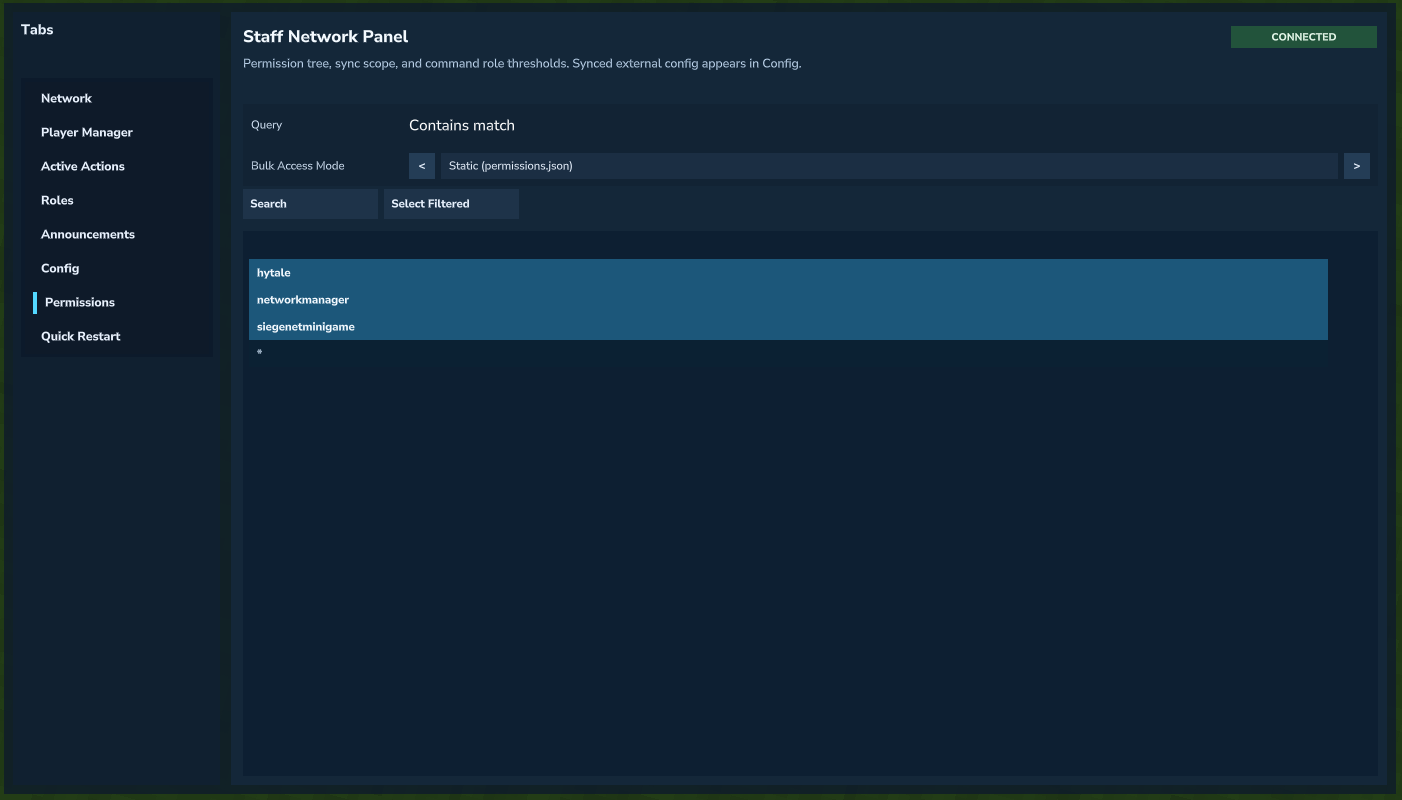 Opening the Permissions tab from the Staff Network Panel.
This tab shows you a tree of all permissions detected on your current server.
The server this player is currently on has a unique Siege Minigame plugin installed, which introduces new permissions. By default, all of these permissions are marked as LOCAL_ONLY, meaning that swapping one of these LOCAL_ONLY permissions is not saved to and propagated across the network.
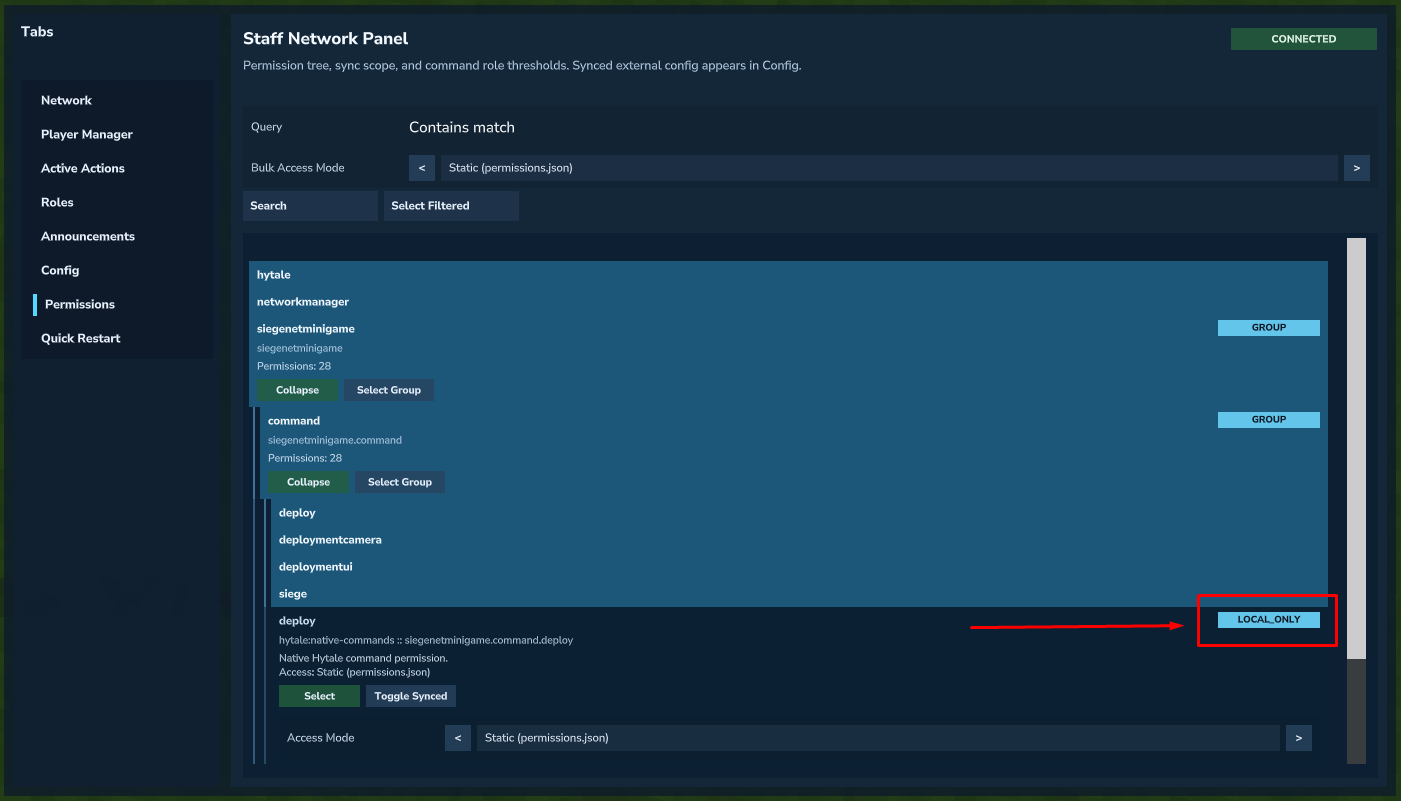 Permission tab view in the siege minigame server.
LOCAL_ONLY permissions will not appear in the Permissions tab when the player accesses the tab from a server which does not have the plugin that introduces that LOCAL_ONLY permission.
In this example, if the player leaves all the siegenetminigame permissions as their default LOCAL_ONLY, and connects back to the hub where the Siege Minigame plugin is not installed, the Permissions tab will not show any siegenetminigame permissions.
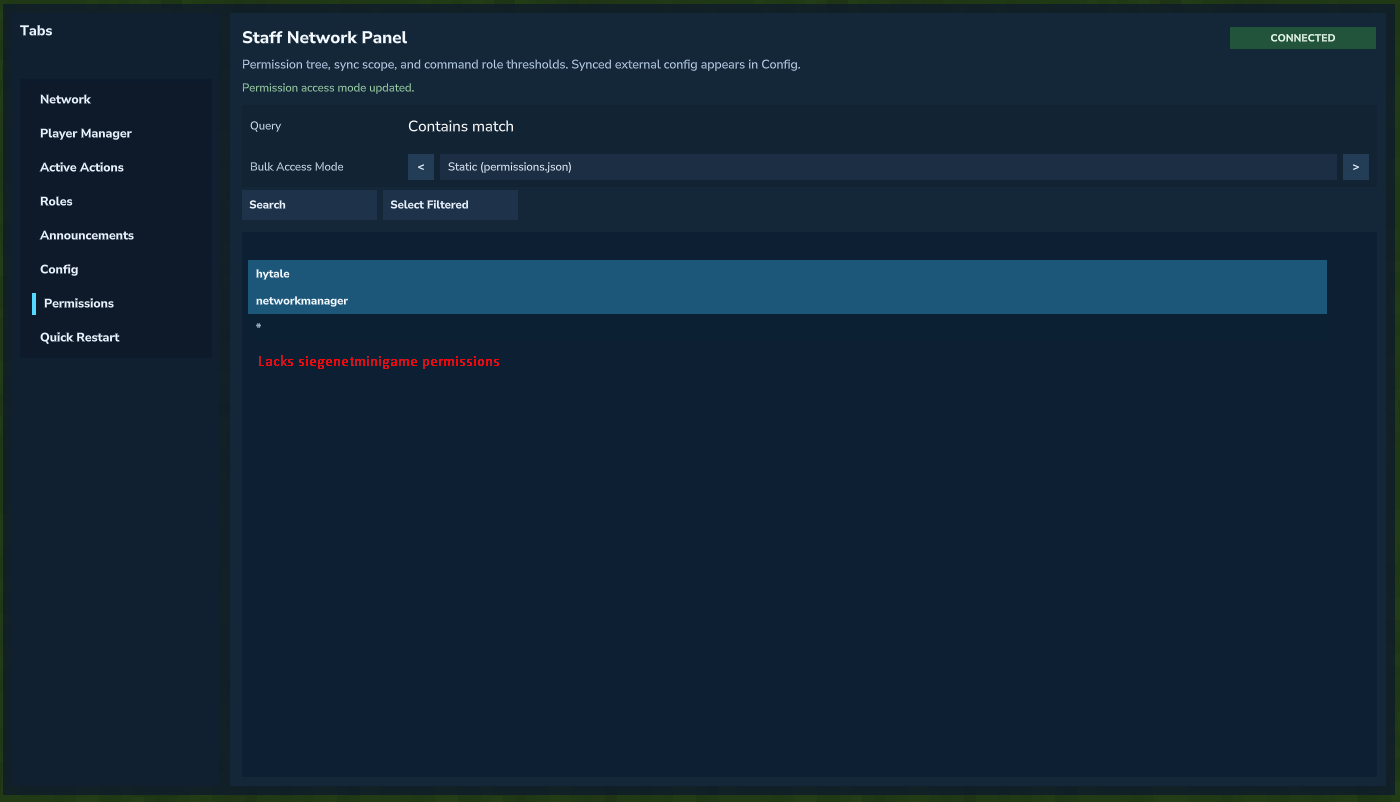 Permissions tab view in the hub server.
However, if the player goes back to the Siege Minigame server and toggles one of these permissions to NETWORK_SYNCHED, then this permission will be shared across the network, and any other server running the Siege Minigame plugin will inherit this permission.
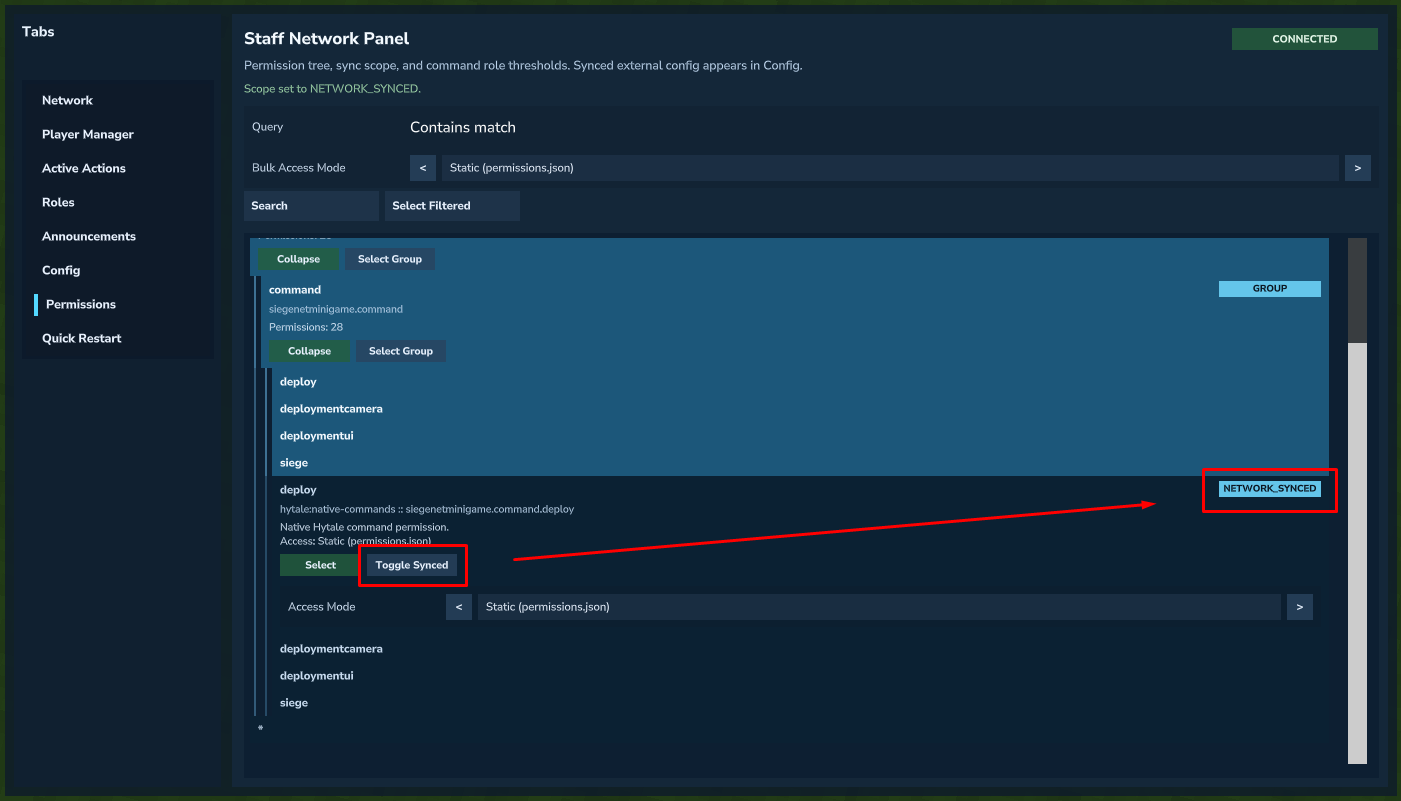 Toggling a permission from LOCAL_ONLY to NETWORK_SYNCHED.
Additionally, synched permissions will be viewable from anywhere within the network. To demonstrate this, let's head back to the hub and check the permissions tab now.
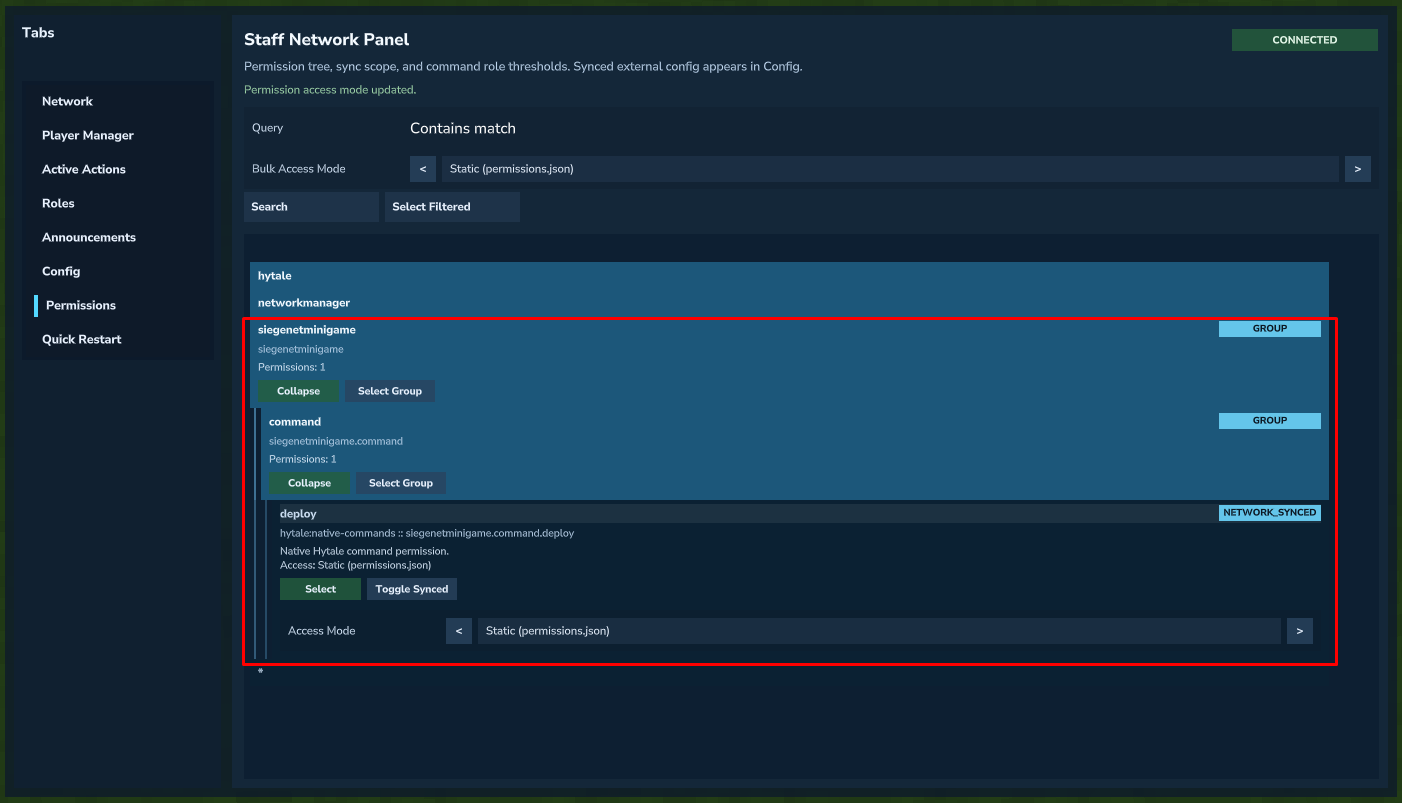 Previously there were no
 siegenetminigame permissions. Now the single synched config appears.
Hardcoded Scopes
NetworkManager permissions are hardcoded to be either LOCAL_ONLY or NETWORK_SYNCHED.
Permission Levels
Permission levels are primarily modulated through the network Roles system.
Designating the Access Mode to a certain role means any role with equal or higher priority than that role may use that command.
Access Mode may also be set to Public, meaning there are no role checks and anyone can use it, or Static, which refers to the default plugin settings for that permission.
Bulk Operation
Whole permission groups can be selected and modulated using the Bulk Access Mode at the top of the tree.
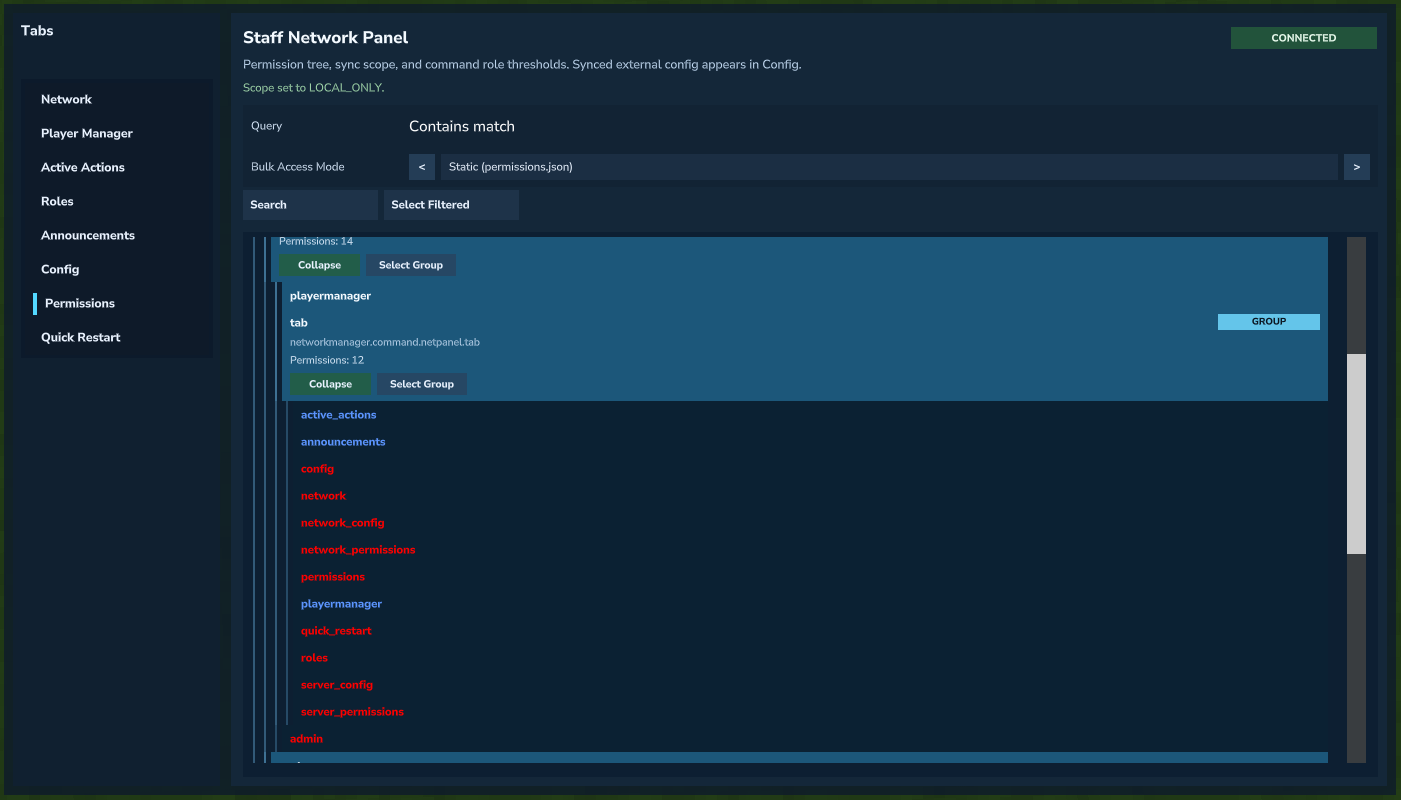 Selecting a permission group for bulk updates.
After selecting a group, set the Bulk Access Mode and hit Apply to Selected for the change to take effect.
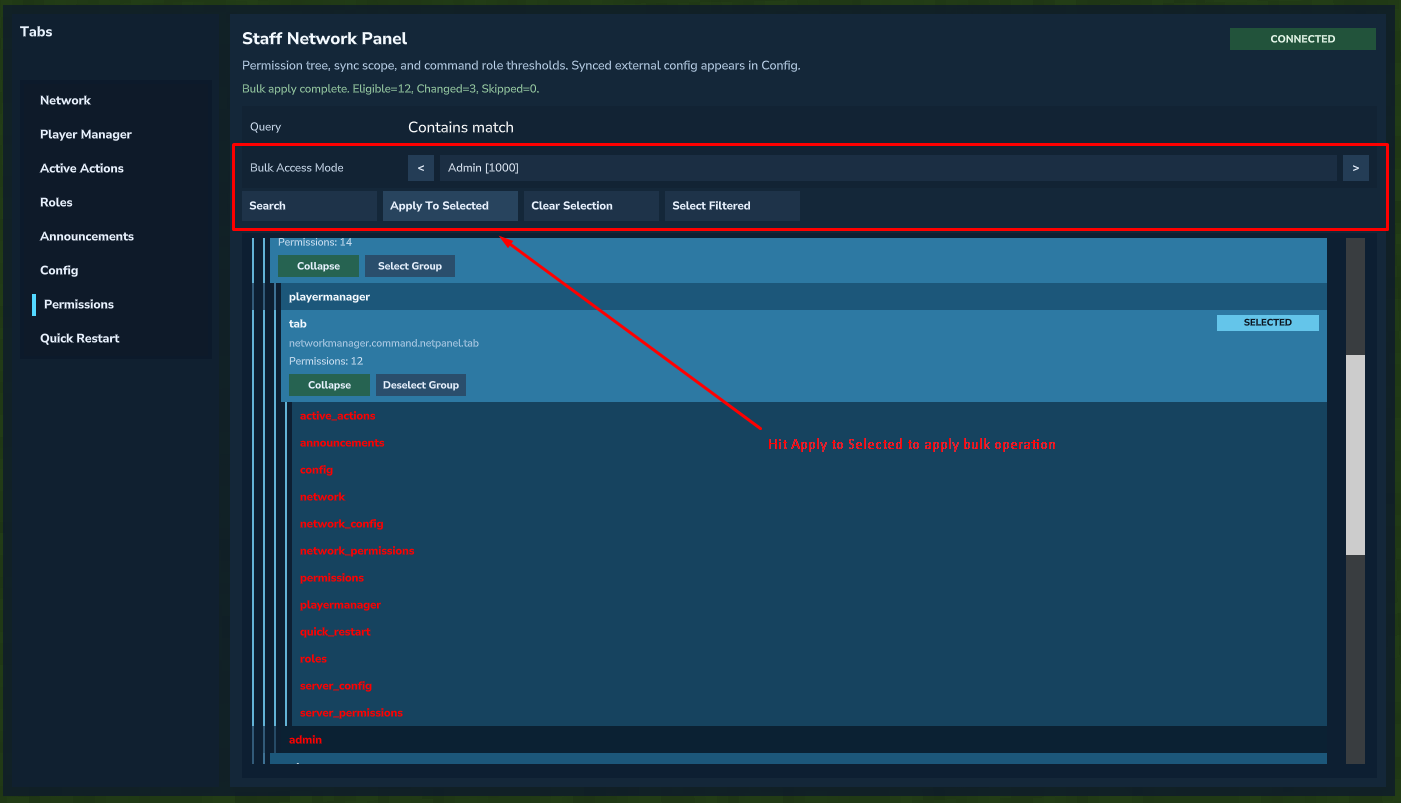 Applying the selected bulk access mode.